
In the bustling world of education, time is a teacher's most precious commodity. From crafting engaging lessons and grading papers to providing individualized student support, every minute counts. Manual administrative tasks, such as painstakingly entering student rosters, often feel like an unnecessary drain on that finite resource. What if you could eliminate one of those time-consuming chores in less than a minute? Imagine reclaiming that precious planning time, ready to dive into creating dynamic learning experiences for your students.
At Mentofy, we understand these challenges intimately. That's why we've engineered our platform to seamlessly integrate with the digital tools you already use, like Google Classroom. This article will guide you through a remarkably simple, step-by-step process to import your entire Google Classroom roster into Mentofy in roughly 60 seconds. We'll show you how this quick action transforms your workflow, unlocking a suite of powerful Mentofy AI teaching tools that enhance everything from lesson planning to student engagement. Get ready to discover how smart integration can revolutionize your daily teaching practice.
1. The Pre-Import Checklist: Setting the Stage for Success
Before you embark on your lightning-fast import, a brief pre-check ensures a smooth and successful transition. Think of this as laying the groundwork for a more efficient teaching experience with powerful Mentofy AI teaching tools at your fingertips.
Ensure Your Mentofy Account is Ready
- Account Creation: If you haven't already, sign up for Mentofy. The process is quick, and Mentofy is free for teachers, offering robust features to get you started immediately. Having an active account is the first essential step.
- Familiarize Yourself: Take a moment to briefly explore the Mentofy dashboard. While we're focusing on roster import, understanding the general layout will make subsequent steps even more intuitive.
Google Classroom Permissions Check
Mentofy needs your permission to access your Google Classroom data. This is a standard, secure process, but it's good to be aware of it beforehand.
- Active Google Account: Ensure you are logged into the correct Google account that manages your Google Classrooms.
- Admin Consent (if applicable): In some school districts, IT administrators might need to grant consent for third-party applications to access Google Classroom data. If you encounter any issues, this is a good first point of inquiry with your school's tech support.
By taking these two simple preparatory steps, you're ensuring that the import process will be as swift and trouble-free as possible, allowing you to quickly move on to leveraging Mentofy's comprehensive suite of Mentofy AI teaching tools.
2. Navigating to MentofyGroups: Your Central Roster Hub
The heart of student management within Mentofy lies in MentofyGroups. This is where your student rosters live, where you can organize classes, track attendance, and utilize intelligent grouping features. This dedicated module is designed to streamline administrative tasks, freeing you up for more impactful teaching.
Locating MentofyGroups on Your Dashboard
Once you're logged into Mentofy, you'll find a clear and intuitive navigation panel, typically on the left side of your screen. Look for the "Groups" or "My Classes" icon or label. Clicking on this will take you directly to the MentofyGroups section, your command center for all student-related operations.
Understanding MentofyGroups' Role
MentofyGroups isn't just a place to store names; it's a dynamic environment built to enhance classroom management. Beyond simple roster management, MentofyGroups offers:
- Smart Student Grouping: Imagine effortlessly creating balanced groups for projects or discussions based on criteria you define. MentofyGroups handles this with intelligent algorithms, a truly innovative feature among Mentofy AI teaching tools.
- Attendance Tracking: Keep accurate records with integrated attendance features, simplifying a daily chore.
- Icebreakers: Kick off lessons with engaging icebreaker activities (10 types available!) directly from your roster, fostering a positive classroom atmosphere.
- Co-Teacher Support: Seamlessly collaborate with co-teachers on shared classes and student management, ensuring everyone is on the same page.
By centralizing these functions, MentofyGroups acts as a powerful hub, reducing the need for multiple disparate teacher tech tools and consolidating your workflow.
3. Initiating the Google Classroom Import: The One-Click Wonder
This is where the magic truly begins. Mentofy has designed the Google Classroom import process to be as straightforward as possible, minimizing clicks and maximizing efficiency. You're just moments away from having your entire roster ready to go.
Finding the "Import from Google Classroom" Button
Within the MentofyGroups interface, you'll immediately spot a prominent button or link, often labeled "Import from Google Classroom" or "Add Class from Google." This button is strategically placed for easy access, ensuring you don't have to hunt for it.
The Secure Authorization Process
Upon clicking the "Import from Google Classroom" button, you will be redirected to a standard Google authorization screen. This is a crucial security step, typical of any reputable teacher tech tools integrating with Google services. Here's what to expect:
- Google Login Prompt: If you're not already logged into Google, you'll be prompted to do so. Ensure you use the Google account associated with your Google Classrooms.
- Permissions Request: Google will ask you to grant Mentofy permission to "View your Google Classroom classes and rosters." This is the specific permission Mentofy needs to pull your student data.
- Reassurance on Security: Mentofy adheres to strict data privacy and security protocols. We only request the necessary permissions to facilitate the import and enhance your teaching experience. Your data is handled with the utmost care and confidentiality.
Once you grant permission, Google securely communicates with Mentofy, allowing it to access your list of classes and the students enrolled within them. This secure handshake takes mere seconds, bringing you closer to a fully integrated digital classroom.
4. Selecting Your Classrooms and Customizing the Import
After successfully authorizing Mentofy to access your Google Classroom data, the platform presents you with a clear, actionable interface to choose which classes you wish to import. This step allows for flexibility and customization, ensuring that only the relevant data is transferred to your Mentofy account.
Choosing Your Classes
Mentofy will display a list of all your Google Classrooms. You'll typically see checkboxes next to each class name. This allows you to:
- Import All Classes: Select a "Select All" option if you want to bring every single one of your Google Classrooms into Mentofy. This is ideal for teachers who plan to utilize Mentofy's features across their entire teaching load.
- Select Specific Classes: If you only want to use Mentofy for certain subjects or periods, simply check the boxes next to the classes you wish to import. This granular control is a testament to Mentofy's user-centric design, understanding that not every teacher tech tools needs to be applied universally.
Customizing Class Names and Tags (Optional but Recommended)
Once you've selected your classes, Mentofy often provides an opportunity for minor customization directly within the import interface:
- Renaming Classes: You might have specific naming conventions in Google Classroom that you'd like to adjust for Mentofy. For example, "ENG101-Period3-Fall2023" could become "English Lit - P3" in Mentofy for easier navigation. This feature ensures consistency across your Mentofy AI teaching tools.
- Applying Tags: Some teachers find it helpful to apply internal tags to their classes (e.g., "Honors," "Remedial," "Project-Based"). While not always available during the initial import, remember that MentofyGroups allows for robust organization after the import, letting you categorize and filter your classes efficiently.
This customization step helps you tailor your Mentofy environment to your specific organizational preferences, making it even more effective as one of your go-to teacher tech tools.
5. Verifying and Confirming Your Roster: The Final Click
You're almost there! The final stage of the import process involves a quick review and a definitive confirmation. This built-in verification step ensures accuracy and gives you one last chance to make any minor adjustments before your roster is fully integrated into Mentofy.
The Review Screen
After selecting your classes, Mentofy will present a summary screen. This screen typically displays:
- Selected Classes: A list of the classes you've chosen to import.
- Student Counts: Often, you'll see the number of students associated with each class, allowing for a quick double-check against your expectations.
- Preview of Students (sometimes): For added transparency, Mentofy might show a partial list of student names for each class, giving you visual confirmation of the data being imported.
Making Last-Minute Adjustments
This review screen is your opportunity to fine-tune the import:
- Deselecting Individual Students: Did a student recently transfer out of a class? You might have the option to uncheck individual students from the import list if they are no longer relevant to that particular class in Mentofy. This level of control is invaluable for maintaining accurate records.
- Confirming Class Inclusion: If you accidentally selected a class you didn't intend to import, this is your chance to deselect it before proceeding.
The "Confirm Import" Button
Once you're satisfied with the preview and any adjustments, locate and click the "Confirm Import" or "Import Now" button. This is the final action that triggers the data transfer. In a matter of seconds, Mentofy will process the information, and your Google Classroom rosters will be seamlessly integrated into your MentofyGroups.
Congratulations! You've just imported your Google Classroom roster into Mentofy, likely well within the promised 60 seconds. Now, the real power of Mentofy begins to unfold as you leverage these newly imported classes across the platform's diverse features. This quick integration sets the stage for a more streamlined and effective use of Mentofy AI teaching tools.
6. Beyond the Import: Leveraging Your New Mentofy Roster
Importing your Google Classroom roster is just the beginning. The true value of this quick integration lies in how it unlocks and enhances Mentofy's full suite of teacher tech tools. With your student data now centralized, you can move seamlessly between administrative tasks and innovative teaching strategies, all within one powerful platform. Forget juggling multiple accounts like Kahoot, Quizlet, Nearpod, or Gimkit; Mentofy brings essential functionalities together.
Streamlined Classroom Management with MentofyGroups
Your imported classes in MentofyGroups become the foundation for incredibly efficient classroom management:
- Smart Student Grouping: No more manual grouping! Utilize MentofyGroups' intelligent algorithms to create balanced, diverse, or skill-specific student groups instantly. This saves immense time and ensures equitable participation.
- Effortless Attendance: Track daily attendance directly within Mentofy, linking it to your official class roster. This simplifies record-keeping and provides insights into student presence over time.
- Engaging Icebreakers: Kick off lessons with any of MentofyGroups' 10 built-in icebreaker activities. These are easily launched for your imported classes, helping to build community and warm up students for learning.
- Co-Teacher Collaboration: Share access to your classes with co-teachers, enabling collaborative planning, grading, and student support, ensuring a unified teaching front.
Revolutionize Lesson Planning and Assessment with Mentofy Academia
Your imported roster feeds directly into Mentofy Academia, transforming how you prepare and assess:
- AI Lesson Plan Generation: With your classes defined, Mentofy's AI can generate tailored lesson plans, complete with objectives, activities, and assessments, saving you hours of prep time. This is a game-changer among Mentofy AI teaching tools.
- Advanced Exam Creator: Generate exams with over 25 different question types, perfectly matched to your curriculum and student needs. Assign these directly to your imported classes.
- Vision AI Auto-Grading: This is where the magic truly happens. Mentofy's Vision AI can auto-grade handwritten papers, instantly providing feedback and scores. With your roster in place, grades are automatically associated with the correct students, eliminating manual entry and significantly reducing your grading workload. This is a leap forward compared to general-purpose teacher tech tools like Canva or even some dedicated AI tools like MagicSchool.
Ignite Engagement with MentofyCove Classroom Games
Boost student motivation and make learning fun with interactive MentofyCove classroom games, all powered by your imported roster:
- Live Multiplayer Games: Launch engaging live games like Word Search, Trivia, Hangman, Crossword, Anagram, and Group Words directly from your class roster. Students can join easily, and their performance can be tracked.
- Seamless Integration: Because your roster is already in Mentofy, setting up a MentofyCove classroom games takes seconds. No need to manually create teams or input student names; it's all there, ready for action. Imagine using a trivia game to review content or a word search game for vocabulary — all linked to your actual students.
Dynamic Classroom Displays with MentofyBoards
Even your interactive classroom displays benefit from your integrated roster:
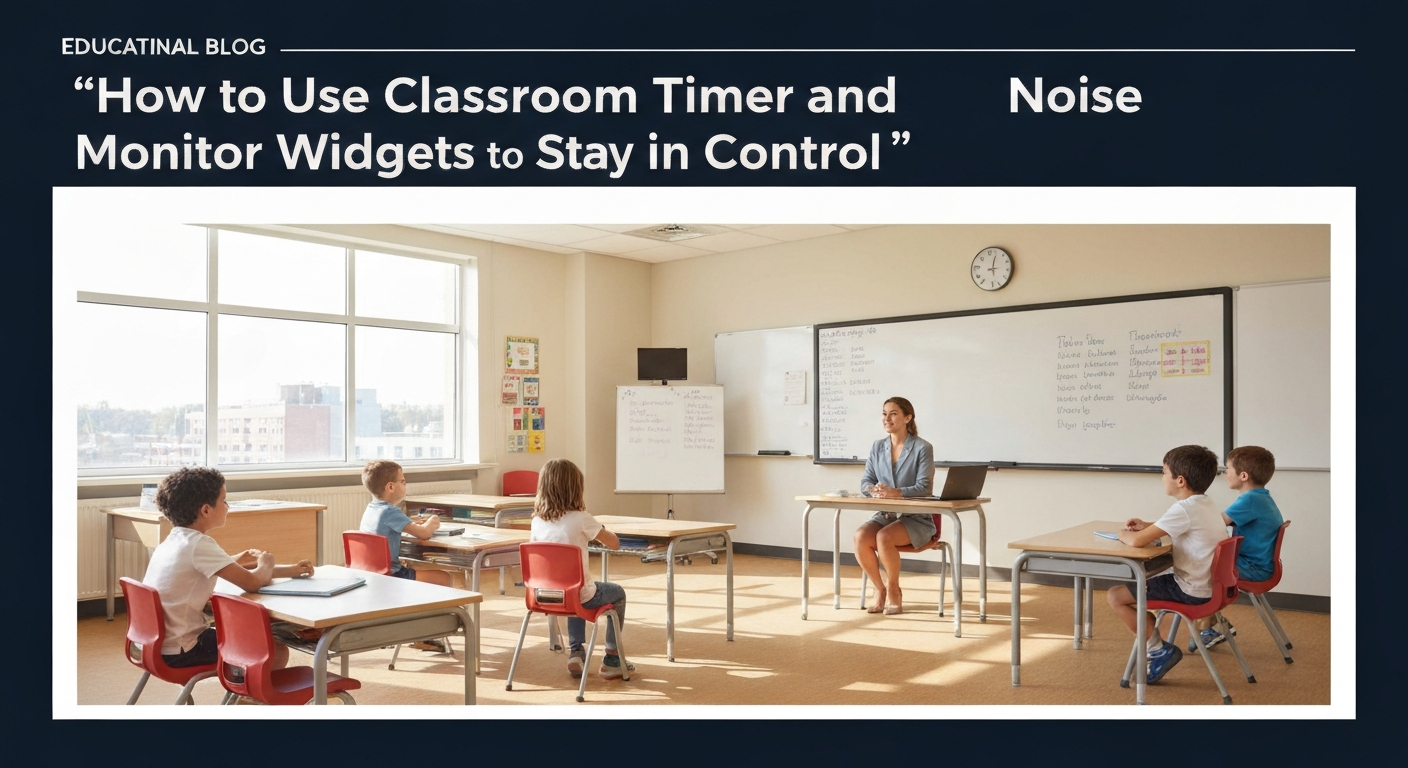
- Interactive Widgets: Utilize MentofyBoards' 18 interactive widgets, such as a countdown timer, scoreboard, noise monitor, polls, or dice. When running polls or using the scoreboard, your imported student list can be leveraged for direct interaction and personalized results, enhancing the utility of this interactive board.
By taking just 60 seconds to import your Google Classroom roster, you're not just moving names from one place to another. You're activating a powerful ecosystem of teacher tech tools designed to save you time, enhance your teaching, and create a more engaging learning environment for your students. This level of seamless integration is what sets Mentofy apart from many other platforms, offering a comprehensive solution rather than just isolated features.
7. Troubleshooting Common Import Questions: Smooth Sailing Ahead
While Mentofy's Google Classroom import is designed to be incredibly smooth, sometimes questions or minor hiccups can arise. Knowing how to address these common scenarios ensures your experience remains efficient and frustration-free. This section aims to provide quick solutions, reinforcing Mentofy's commitment to being a genuinely helpful set of teacher tech tools.
"I clicked 'Import,' but I don't see my classes listed."
This is usually due to one of two reasons:
- Incorrect Google Account: Double-check that you are logged into the Google account directly associated with your Google Classrooms. If you have multiple Google accounts (personal, school, etc.), ensure the correct one is authorized.
- Permissions Not Granted: During the authorization step, you might have accidentally denied Mentofy the necessary permissions. You can usually revoke and re-grant permissions through your Google Account settings (under Security > Third-party apps with account access). Try the import process again, carefully reviewing the permission prompts.
- Refresh or Re-login: Sometimes, a simple browser refresh or logging out and back into Mentofy can resolve minor display issues.
"A student is missing from my imported roster."
If you notice a student is absent from your Mentofy class after import, consider these possibilities:
- Recent Enrollment Changes: Google Classroom rosters are dynamic. If a student enrolled or unenrolled very recently, there might be a slight delay in the data being reflected.
- Manual Addition: MentofyGroups allows you to manually add individual students to any class. Navigate to the specific class, and look for an "Add Student" or "+" button. This is a quick fix for isolated cases.
- Syncing Updates: While the initial import is a snapshot, Mentofy offers a way to resync with Google Classroom for updates (e.g., new students). Look for a "Sync" or "Update Roster" option within your class settings in MentofyGroups.
"How often does Mentofy sync with Google Classroom?"
The initial import is a one-time action that pulls your current roster. Mentofy does not automatically and continuously sync in real-time to avoid unintended data changes. However, for ongoing updates:
- Manual Sync for Updates: You can typically initiate a manual sync from within MentofyGroups for specific classes. This allows you to pull in new students or changes from Google Classroom when you need them, giving you control over when updates occur. This approach balances convenience with data integrity, a hallmark of well-designed teacher tech tools.
- Re-import (if necessary): For significant changes or if you prefer a clean slate, you can always delete a class in Mentofy and re-import it from Google Classroom, though this is rarely necessary for minor updates.
"Can I import multiple classes at once?"
Yes, absolutely! As covered in Tip 4, Mentofy allows you to select multiple classes from your Google Classroom list during the import process. You can select all your classes or pick and choose, making it incredibly efficient to set up your entire teaching load on Mentofy in minutes.
By understanding these common scenarios and their straightforward solutions, you can maximize the efficiency of Mentofy's Google Classroom integration. Our goal is to provide teacher tech tools that are not only powerful but also user-friendly and well-supported, ensuring you can focus on what you do best: teaching.
Ready to save hours every week? Mentofy is free for teachers — start in under 2 minutes.




 Explore AI Teaching Tools
Comments (0)
Please login to comment
No comments yet
Be the first to comment on this article