
Beyond the Built-in: Unlocking Peak Productivity on Windows with Free Tools
For years, Windows users have often felt like they were playing catch-up in the world of productivity software. While rivals boasted seamless, integrated applications for everything from video editing to note-taking, the default offerings on Windows sometimes left much to be desired. But the narrative of limited options is rapidly changing. A wealth of powerful, free applications now exists, ready to transform your daily workflow.
The perception that you need to spend a fortune to optimize your digital workspace is a misconception. This curated selection focuses on tools that are not only effective but also completely free, making advanced productivity accessible to everyone. We've scoured the landscape to identify the applications that truly make a difference, enhancing everything from how you capture information to how you manage your digital life.
Capture and Annotate with Precision
The fundamental act of capturing your screen is a common task, yet the built-in Windows tools can feel limiting, especially for those who need more than a basic snapshot.
Elevating the Screenshot Experience
If you've relied on the standard Windows screenshot utility, you've likely encountered its limitations, particularly when it comes to editing and annotation. For frequent users, this can quickly become a bottleneck.
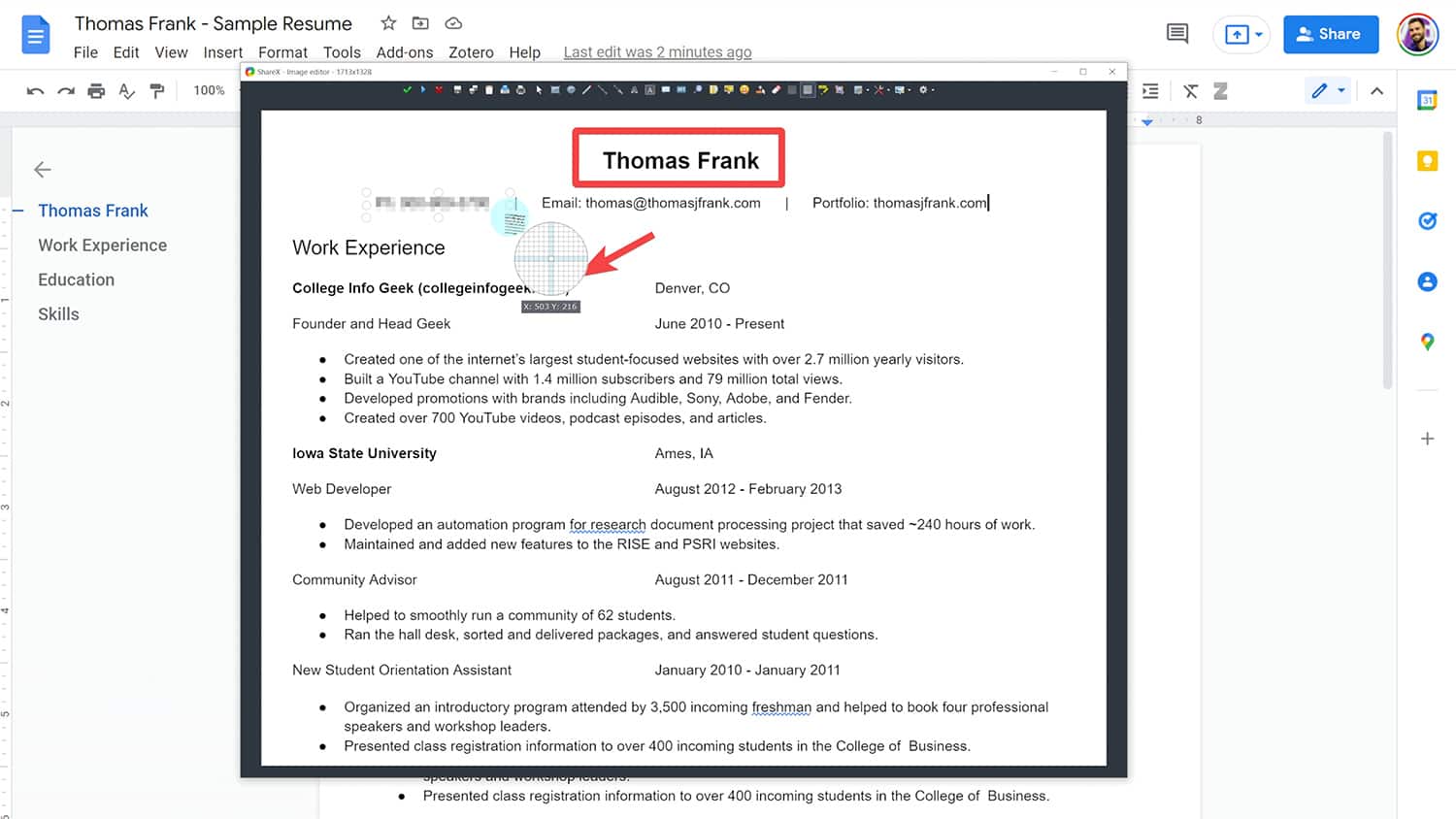
A standout alternative is an open-source tool that provides a far more robust experience. This application allows for swift capture of any screen area with simple key combinations. Once captured, it offers extensive editing capabilities, including cropping, annotation, and even blurring specific sections of your image.
What truly sets this tool apart is its integrated optical character recognition (OCR) feature. This powerful function lets you extract text directly from your screenshots almost instantaneously. Imagine grabbing an important piece of text from an image and being able to copy and paste it into your documents or notes without retyping. This makes your workflow significantly faster and more efficient.
To further streamline your process, consider customizing hotkeys. For instance, assigning a shortcut to add screenshots directly to your clipboard, another to open the editor, and a third for OCR text extraction can save you valuable seconds throughout your day.
Instant Previews: A macOS Feature Now on Windows
One of the subtle yet significant conveniences found on other operating systems is the ability to quickly preview files without fully launching their associated applications. This feature is a game-changer for anyone working with large or numerous files.
Bridging the Preview Gap
The native Windows file explorer, while functional, lacks the immediate preview capabilities that many users have come to expect. This means that opening large image files, lengthy documents, or complex design projects can involve considerable waiting time.
Fortunately, a free application has emerged to replicate this essential functionality. Once installed, this tool transforms how you interact with your files. Simply select a file and press the spacebar, and a large preview window will appear, displaying the file's contents.
This is particularly beneficial for professionals working with graphic design software, video editors, or anyone dealing with large media assets. The time saved by avoiding repeated application launches adds up, allowing you to focus on your creative or analytical tasks rather than waiting for software to load.
The All-in-One Workspace: Notes, Tasks, and Databases
In the quest for digital organization, many users juggle multiple applications for note-taking, task management, and data organization. A single, powerful tool can consolidate these needs, creating a unified command center for your information.
Notion: More Than Just Notes
When discussing productivity, it's impossible to overlook a platform that elegantly merges note-taking, task management, and database functionality into a single, cohesive experience. This application stands out for its versatility and its robust free tier.
At its core, it provides a sophisticated environment for capturing your thoughts and ideas. You'll find all the essential text editing features you'd expect, along with extensive formatting options to structure your notes logically. The ability to create nested hierarchies makes it ideal for implementing advanced organizational systems, allowing you to build interconnected webs of information.
Beyond text, you can seamlessly embed images, videos, and other media, enriching your notes and making them more dynamic. This makes it an exceptional tool for students, researchers, writers, and anyone who needs to compile and organize diverse types of content.
The true power of this platform lies in its potential as a comprehensive personal productivity system. From simple checklists and calendars to complex relational databases, it offers the flexibility to manage virtually every aspect of your professional and personal life. Imagine a single space where your to-do lists, project plans, meeting notes, and reference materials all coexist and interact.
A Smarter Way to Browse the Web
Web browsers are central to our digital lives, and optimizing this experience can have a profound impact on overall productivity. The default browser on Windows has evolved significantly, offering features that rival and even surpass those found elsewhere.
Edge: Vertical Tabs and Resource Management
Historically, Windows browsers have faced criticism, but the current iteration represents a substantial leap forward. For users accustomed to other Chromium-based browsers, the transition is seamless, bringing with it a suite of unique advantages.
One key benefit is its performance. While the exact metrics can be debated, it generally offers a snappier experience and is less resource-intensive than some of its popular counterparts. This means your system runs more smoothly, even with numerous applications open.
Crucially, because it's built on the same open-source foundation as other leading browsers, you can import and use your existing extensions. This ensures that your familiar workflow remains intact, eliminating the need to reconfigure your digital toolkit.
Beyond compatibility, this browser introduces innovative features. For those who tend to keep many tabs open, a built-in function automatically puts inactive tabs to sleep after a set period, conserving valuable system resources. Furthermore, it offers the ability to display your tabs vertically along the side of the screen. This visual arrangement makes it far easier to scan and manage a large number of open web pages at a glance, a feature not readily available in other browsers without third-party add-ons.
Supercharging Your Clipboard
The humble clipboard is an unsung hero of digital efficiency, enabling quick copying and pasting of text, links, and other data. However, its traditional limitation of holding only a single item can lead to frustrating data loss.
Expanding Your Clipboard's Memory
For anyone who frequently copies and pastes, the risk of overwriting valuable information is a constant concern. Accidentally copying a new piece of text can erase something you needed to save, forcing you to find and copy it again.
Fortunately, Windows now includes a built-in feature to overcome this limitation. By simply pressing a specific key combination, you can enable clipboard history. This transforms your clipboard from a single-item holder into a multi-item repository.
Once enabled, you can access a list of everything you've recently copied. This means you can retrieve older snippets of text or links without fear of them being lost. It’s a small change that makes a significant difference in reducing errors and streamlining repetitive tasks.
While the ability to sync clipboard history across devices is available, it's advisable to exercise caution, especially if you frequently copy sensitive information like passwords or financial details. Prioritizing security ensures that your enhanced clipboard remains a tool for efficiency, not a potential vulnerability.
Effortless App Launching and Searching
Navigating between numerous applications and performing quick searches can interrupt your flow. A dedicated launcher can bring these actions to your fingertips, significantly speeding up your interaction with your computer.
Flow Launcher: Your Command Center
If your work involves a constant stream of different applications, a powerful launcher is an indispensable tool. With a simple keyboard shortcut, this application opens a small text window, enabling you to search for files, launch applications, and even perform calculations without leaving your current context.
The capabilities extend beyond basic launching. You can initiate web searches directly, open specific websites, and even control certain applications. For example, you can type a command to start playing music by a particular artist, all from the launcher interface.
This tool also allows for quick calculations, eliminating the need to open the dedicated calculator app. Furthermore, its customizable nature means you can create your own commands tailored to your specific workflow, making it an incredibly adaptable productivity booster.
The real magic happens when you combine this launcher with other specialized tools. By integrating it with a text expansion utility, you can create even more powerful shortcuts for frequently used commands or phrases, further accelerating your digital tasks.
Automating Repetitive Text Entry
Typing the same phrases, sentences, or even entire paragraphs repeatedly is a common source of inefficiency. A text expansion tool can automate this process, transforming short abbreviations into longer, pre-defined text snippets.
Espanso: Your Personal Text Snippet Manager
Do you find yourself constantly typing your email address, a specific URL, or a standard response to common inquiries? These repetitive typing tasks are prime candidates for automation. A text expander application can turn short, memorable abbreviations into much longer strings of text.
For instance, you could configure a snippet so that typing "em" automatically expands to your full email address. As you build a library of these shortcuts, managing them becomes crucial. This particular tool offers a search function that allows you to quickly find and insert any of your saved text snippets.
This integrated search capability is a key advantage, providing a more organized approach compared to some other text expansion solutions. The ability to efficiently manage your snippets ensures that the tool remains a productivity asset rather than a source of clutter.
Furthermore, this text expander can be integrated with application launchers. Imagine creating a snippet that, when typed into your launcher, automatically navigates to a specific folder on your computer. This level of integration makes navigating your file system far more efficient than manual searching.
Instant File Search: Simplicity at Its Finest
The default file search functionality in Windows can sometimes feel sluggish, especially when dealing with large hard drives. A dedicated file indexing tool can dramatically improve this experience, making it almost instantaneous.
Everything: The Power of Speed
This application demonstrates that sometimes the most impactful tools are the simplest. Its sole purpose is to enhance the speed and efficiency of searching for files on your computer. It achieves this by indexing all the files on your hard drive, allowing for near-instantaneous search results.
If you've ever experienced frustration waiting for the standard Windows Explorer search to complete, this tool offers a compelling alternative. It provides immediate access to any file, no matter how deeply it's buried within your file system.
Cloud Storage: Your Digital Safety Net
In today's interconnected world, ensuring your files are backed up and accessible across multiple devices is no longer a luxury but a necessity. Cloud storage solutions provide this crucial functionality.
Google Drive: Generous Free Storage
Among the many cloud storage options available, one stands out for its generous free storage allocation. This platform offers a substantial amount of space at no cost, making it an excellent starting point for most users.
Compared to other services, its free tier provides significantly more storage, allowing you to house a considerable number of files. For optimal utility, consider structuring your entire computer's file system around this cloud storage. By treating it as the primary location for all your documents, you ensure that every file is automatically backed up and accessible from any device.
This approach eliminates the worry of data loss and provides seamless access to your work, whether you're at your desk or on the go. It transforms your digital storage from a localized concern into a universally accessible resource.
Protecting Your Sleep: Screen Adjustments
The constant exposure to bright screens, especially in the evening, can impact sleep quality. A simple utility can help mitigate this by adjusting your screen's color temperature.
f.lux: Gentle Evening Light
If you're concerned about the effects of blue light on your sleep patterns, a free application offers a straightforward solution. This tool automatically adjusts the color temperature of your computer screen as the day progresses.
As the sun sets, the application gradually warms the screen's colors, reducing the amount of blue light emitted. You simply need to provide your location and typical wake-up time, and the app handles the rest. It operates quietly in the background, making subtle adjustments that can lead to improved sleep hygiene.
While it may take a short period to adjust to the warmer tones, many users report a noticeable difference in their ability to relax and fall asleep after incorporating this tool into their evening routine. It's a small change that prioritizes your well-being.
Transform Your Windows Experience Today
This exploration of free Windows applications demonstrates that significant productivity gains are well within reach without any financial investment. By strategically integrating these tools, you can streamline common tasks, enhance your organizational capabilities, and create a more efficient digital environment.
The key lies in identifying and implementing solutions that address your specific workflow challenges. Whether it's capturing information more effectively, managing your digital assets with greater ease, or simply reducing the friction in your daily computer use, these free applications offer powerful ways to boost your output and reduce frustration.







 Explore AI Teaching Tools
Comments (0)
Please login to comment
No comments yet
Be the first to comment on this article